14 Jamadil Awal 1431H
The
Linux Terminal, as shown in
Pic 1, is similar to the
Windows Command Prompt. The Terminal can be accessed from the panel as shown in
Step 1 of
Using Terminal in this post:
How to update Ubuntu using Terminal or Update Manager.
Pic 1 - Linux Terminal.
The Terminal can also be accessed using a shortcut in the
context menu (
right-click menu) by right-clicking the mouse, or pressing the
menu key on the keyboard. In the context menu, the shortcut to the Terminal is labeled as "
Open in Terminal" as can be seen in
Pic 8. To be able to use this shortcut, the Terminal shortcut needs to be added to the menu first. How to add it? The simplest and safest way to install is via the
Ubuntu Software Center.
1. Run the
Ubuntu Software Center. From the panel, click
Applications >
Ubuntu Software Center. Refer to
Pic 2.
Pic 2 - Refer Step 1. Accessing
Ubuntu Software Center from the panel.
2. Type "
nautilus open terminal" in the search field. The auto-filtered results will be displayed instantly.
Select the "
nautilus plugin for opening terminals in arbitrary local paths". Then click the
More Info button. Refer to
Pic 3.
Pic 3 - Refer Step 2.
Ubuntu Software Center displaying the auto-filtered results according to the search term "
nautilus open terminal".
3. To install the
nautilus-open-terminal, simply click the
Install - Free button.
Pic 4 - Refer Step 3. Click the
Install - Free button to install the
nautilus-open-terminal.
4. If a security window as shown in
Pic 5 pops-up, type in your security password then click the
Authenticate button. Otherwise, ignore this step.
Pic 5 - Refer Step 4. Authenticate.
5. The
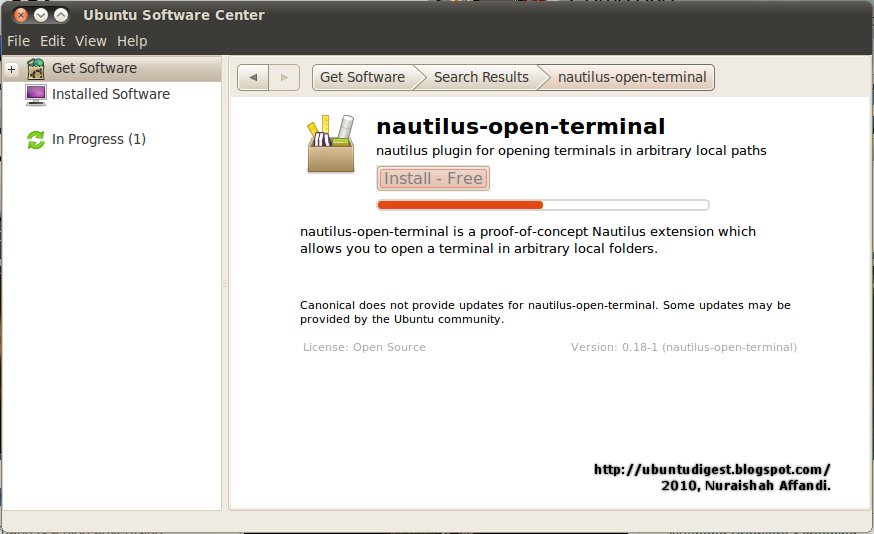
nautilus-open-terminal installation process is shown in
Pic 6. Once the process is complete,
reboot (restart) your laptop for the installation to take effect.
Pic 6 - Refer Step 5. The
nautilus-open-terminal installation in progress.
[Update: 9 Feb 2012M] Thank you to
Brian for suggesting this method and webpage on how to restart nautilus without having to reboot or log out:
How to restart nautilus without logging out?
"Then just open Nautilus and Open in Terminal is in the context menu" --Brian.
Pic 7 shows the absence of the Terminal shortcut in the context menu. This is after the installation is complete, but before rebooting.
Pic 7 - Refer Step 5. The context menu before rebooting.
Pic 8 shows the presence of the Terminal shortcut in the context menu, indicated as "
Open in Terminal".
Pic 8 - Refer Step 5. The context menu after rebooting. The shortcut to the Terminal is indicated as "
Open in Terminal".